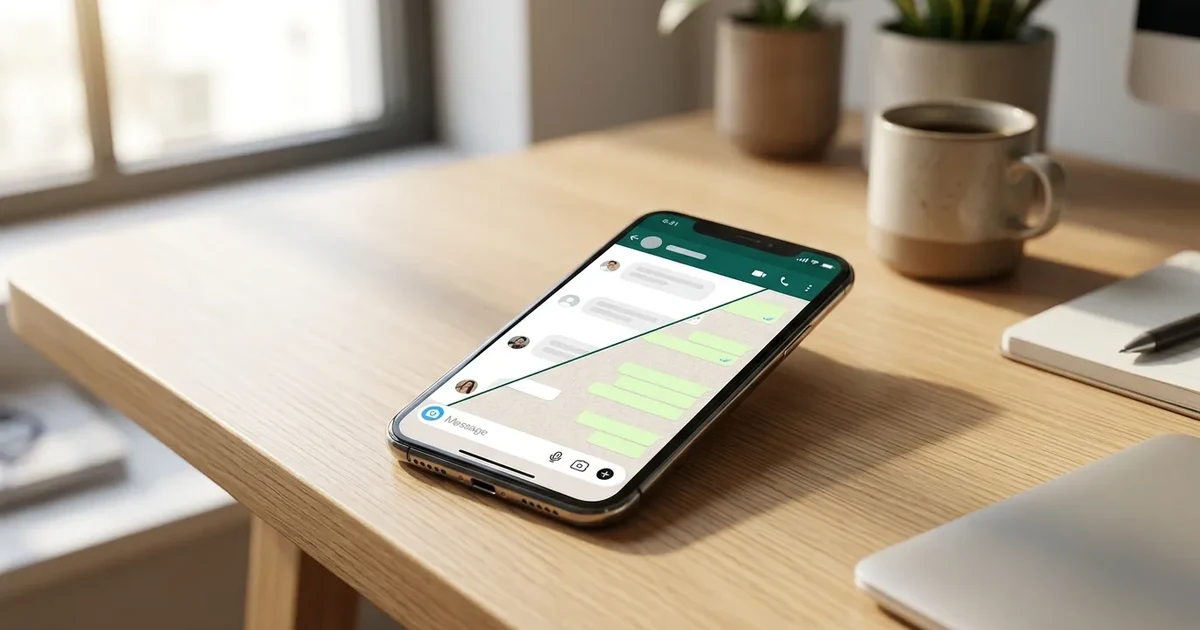
Picture this: a customer messages you on WhatsApp at 11 PM asking if you have an opening tomorrow at 10. Instead of seeing the message the next morning (when the customer has already booked with your competitor), your AI chatbot shows them available time slots in real time, confirms the appointment, registers it in your Google Calendar, and sends an automatic reminder. All without you touching your phone.
That's exactly what you get when you connect Google Calendar with WhatsApp through an AI agent. And in this guide, we'll show you how to do it step by step, with no coding or technical help required.
Why integrating your calendar with WhatsApp is a big win
Manual appointment management is one of the biggest time and money drains for any service-based business. The numbers speak for themselves:
- 42% of appointments booked by phone or manual message end in no-shows, according to an Accenture study on professional services in Europe.
- The average business wastes 2 to 4 hours daily managing schedules: answering messages, checking availability, confirming appointments, and following up.
- 67% of customers prefer to book outside business hours, mainly in the evenings and on weekends, according to Google Consumer Survey data.
- Double bookings affect 23% of businesses that manage appointments manually, causing conflicts, forced cancellations, and a poor brand image.
The solution isn't hiring someone to watch WhatsApp around the clock. The solution is to automate the entire process by connecting your calendar with WhatsApp through an AI chatbot.
What the integration actually does
When you connect Google Calendar with WhatsApp through InBoxIA, your customers can:
- Check availability in real time directly through WhatsApp.
- Book an appointment by choosing the date, time, and service from within the conversation.
- Receive instant confirmation with the appointment details.
- Get automatic reminders 24 hours and 1 hour before the appointment.
- Reschedule or cancel without needing to call or wait for you.
And you, as the business owner, get:
- Zero double bookings: the chatbot checks your calendar in real time before confirming.
- Up to 60% fewer no-shows thanks to automatic reminders.
- 3-4 hours saved daily that you can spend serving customers or growing your business.
- 24/7 availability for booking: your customers schedule when it suits them, not when you can reply.
Zapier/n8n vs. InBoxIA: which approach is right for you?
If you've searched for "connect Google Calendar to WhatsApp," you've probably come across tutorials that use Zapier or n8n to build this automation yourself. Both are legitimate, powerful tools — but they solve a different problem than InBoxIA does.
Zapier and n8n connect Google Calendar to WhatsApp's API through a workflow you build and maintain yourself: triggers, actions, conditional logic, error handling. This gives you full control over the exact flow, and it's a great option if you already have a developer on your team or enjoy building automations.
InBoxIA is a no-code AI agent that understands natural conversation, not a fixed workflow. Instead of "if customer says X, do Y," it reads intent: a customer can write "do you have anything free this week?" or "can I move my appointment to Friday?" in their own words, and the AI figures out what to do — check availability, reschedule, confirm — without you mapping out every possible phrasing in advance.
| Zapier / n8n (DIY) | InBoxIA | |
|---|---|---|
| Setup | You build and connect each step yourself | Connect your calendar, done in minutes |
| Conversation handling | Rule-based; needs a defined path per scenario | Natural language AI; handles open-ended requests |
| Maintenance | You maintain the workflow as your process changes | Managed platform, updates automatically |
| Best for | Teams with technical resources who want full control | Businesses that want a working system without building one |
If you're comfortable with workflow tools and want to DIY the integration, Zapier and n8n are solid choices. If you'd rather have a working AI agent handling bookings today without assembling the pipeline yourself, that's exactly what InBoxIA is built for.
Prerequisites before you start
Before following the tutorial, make sure you have the following:
- A Google account with Google Calendar active (the free version works perfectly).
- A WhatsApp Business number or a dedicated number for your business.
- An InBoxIA account (you can create a free account here to try the integration).
- Your business details: services you offer, duration of each service, business hours, and available days.
- 15 minutes of your time. Yes, that's all you need.
If you haven't set up your AI agent on WhatsApp yet, we recommend starting with our complete guide to setting up an AI agent on WhatsApp and then coming back here to add the calendar integration.
Step 1: Connect Google Calendar with InBoxIA
The first step is to link your Google Calendar account with the InBoxIA platform. This takes less than 2 minutes:
- Log in to your InBoxIA dashboard at app.inbox-ia.com.
- Go to the "Integrations" section in the left sidebar menu.
- Click on "Google Calendar" from the available integrations.
- Authorize access by clicking "Connect with Google". A Google window will open where you need to sign in and give InBoxIA permission to read and write to your calendar.
- Select the calendar you want to use for appointments. If you have multiple calendars (personal, work, etc.), choose the one that corresponds to your business.
- Confirm the connection. You'll see a success message and your calendar will show as "Connected" with a green indicator.
Important: InBoxIA only accesses the availability and events of the calendar you select. It does not read your emails, contacts, or any other data from your Google account.
Google Calendar API requirements and limitations
Before you connect your calendar, it's worth knowing what the integration can and can't do:
- Google account type: personal Gmail Calendar and Google Workspace calendars both work. If you use Workspace, your admin may need to approve third-party app access depending on your organization's settings.
- OAuth permissions: InBoxIA requests read/write access to the specific calendar you choose during setup — not your inbox, contacts, or other Google services.
- Sync speed: changes made directly in Google Calendar are typically reflected in the chatbot's availability within seconds to a couple of minutes — Google's API doesn't guarantee an instant push, so under heavy simultaneous edits there can be a brief lag.
- Rate limits: Google enforces a request quota measured per minute, not per day. For a single business managing normal appointment volume this essentially never becomes a factor — it would only matter at very high scale, well outside what a typical service business needs.
- One calendar per connection: each Google Calendar maps to one set of availability rules. If you have multiple professionals, connect a separate calendar per person (see Step 3).
Step 2: Configure your availability
Once the calendar is connected, you need to tell the chatbot when your customers can book:
- Go to "Calendar > Availability" in your InBoxIA dashboard.
- Set your general schedule for each day of the week. For example:
- Monday to Friday: 9:00 AM - 2:00 PM and 4:00 PM - 8:00 PM
- Saturday: 9:00 AM - 2:00 PM
- Sunday: closed
- Set the default appointment duration (30 min, 45 min, 1 hour, etc.).
- Add buffer time between appointments if needed. For example, a 15-minute gap between each appointment so they don't overlap.
- Configure minimum and maximum lead time: how far in advance an appointment can be booked (e.g., minimum 2 hours before) and the maximum advance booking window (e.g., up to 30 days).
- Block special dates: holidays, vacation days, training days, etc.
The chatbot combines this configuration with events already in your Google Calendar. If you have a personal meeting from 12:00 PM to 1:00 PM on a Tuesday, that slot won't be offered to your customers even though it falls within your business hours.
Step 3: Configure services and appointment types
Now let's define what your customers can book:
-
Go to "Calendar > Services" in your dashboard.
-
Create each service type you offer. For each one, define:
- Service name: "Initial consultation", "Haircut", "Physiotherapy session", etc.
- Duration: how long the appointment lasts (30 min, 1 hour, etc.).
- Price (optional): if you want the chatbot to inform customers of the cost.
- Description (optional): additional details the customer should know.
- Required preparation: if the customer needs to bring anything or arrive early.
-
Assign professionals if you work with a team. You can link a different Google Calendar to each professional so bookings are distributed correctly.
Practical example: a dental clinic might have these services configured:
| Service | Duration | Professional |
|---|---|---|
| Dental cleaning | 45 min | Dr. Garcia |
| General check-up | 30 min | Dr. Martinez, Dr. Garcia |
| Orthodontics (review) | 20 min | Dr. Lopez |
| Teeth whitening | 90 min | Dr. Garcia |
Step 4: Set up the WhatsApp booking flow
This is where the magic happens. Let's configure how the chatbot interacts with your customers when they want an appointment:
-
Go to "AI Agent > Flows" in your InBoxIA dashboard.
-
Activate the "Book appointment" flow or create a custom one.
-
Define the flow steps. A typical flow looks like this:
- Step 1: The customer says something like "I want to book an appointment" or "Do you have availability tomorrow?". The AI chatbot detects the intent automatically.
- Step 2: The chatbot asks which service they need (if you offer more than one).
- Step 3: The chatbot displays the nearest available dates and times.
- Step 4: The customer picks their preferred time.
- Step 5: The chatbot asks for their name and contact details (if it's their first time).
- Step 6: Instant confirmation with a summary of the appointment.
-
Customize the messages the chatbot sends at each step. You can adjust the tone to match your brand: formal, friendly, playful, etc.
-
Enable confirmation messages so the customer receives a summary with the date, time, service, and address.
Example of a real conversation
Here's what a typical automated booking conversation looks like:
Customer: Hi, I'd like to book a haircut
ChatBot: Hello! I'd be happy to help you book a haircut appointment. Here are the next available time slots:
- Tuesday June 11: 10:00 AM, 11:30 AM, 4:00 PM, 5:30 PM
- Wednesday June 12: 9:00 AM, 10:30 AM, 12:00 PM, 4:00 PM
- Thursday June 13: 9:00 AM, 11:00 AM, 5:00 PM
Which one works best for you?
Customer: Tuesday at 10
ChatBot: Perfect. Your appointment is confirmed:
- Service: Haircut
- Date: Tuesday, June 11, 2026
- Time: 10:00 AM
- Address: 45 Gran Via Street, Madrid
I'll send you a reminder 24 hours before. If you need to change your appointment, just message me here. See you Tuesday!
Step 5: Set up automatic reminders
Reminders are the most powerful tool for reducing no-shows. Here's how to configure them:
- Go to "Calendar > Reminders" in your dashboard.
- Enable automatic reminders via WhatsApp.
- Define when they are sent. We recommend this combination:
- 24 hours before: main reminder with the option to confirm or cancel.
- 2 hours before: short final reminder.
- Customize the message for each reminder. Always include the option to cancel or reschedule so the customer doesn't simply "disappear".
Reminder example:
Hi Maria, just a reminder that you have an appointment tomorrow, Tuesday June 11 at 10:00 AM for a haircut at our salon on 45 Gran Via Street.
Reply:
- "Confirm" to confirm your attendance
- "Change" to reschedule
- "Cancel" to cancel the appointment
We look forward to seeing you!
Businesses using automatic WhatsApp reminders report a 40% to 60% reduction in no-shows, according to internal InBoxIA data.
Step 6: Manage rescheduling and cancellations
Life happens, and customers need to change appointments. Instead of calling you or sending a message you read hours later, the chatbot handles this instantly:
- The customer writes something like "I need to change my appointment" or "I can't make it on Tuesday".
- The chatbot identifies the customer's active appointment in your Google Calendar.
- It offers new options for date and time based on current availability.
- It automatically updates your Google Calendar with the new appointment and removes the old one.
- It sends confirmation with the new details to the customer.
For cancellations:
- The customer says "I want to cancel my appointment".
- The chatbot confirms the cancellation and frees up the slot in your calendar.
- Optionally, the chatbot can offer to reschedule before cancelling permanently.
- The freed slot becomes available immediately for other customers.
Key benefits of connecting Google Calendar with WhatsApp
Bookings 24 hours a day, 7 days a week
Your customers no longer depend on your schedule to book. At 6 AM, at 11 PM, on Sundays, or on holidays: the chatbot is always available. This is especially important in Spain and Latin America, where over 60% of WhatsApp inquiries happen outside business hours.
Complete elimination of double bookings
Forget the nightmare of having two customers at the same time. The chatbot checks your Google Calendar in real time before confirming any appointment. If someone just booked the 10:00 AM slot on Tuesday, that time disappears instantly for everyone else.
Dramatic reduction in no-shows
Automatic WhatsApp reminders have a 98% open rate (compared to 20% for email and 45% for SMS). When the customer receives a reminder through the same channel where they booked, the likelihood of them confirming or cancelling on time is much higher.
Real time and money savings
| Task | Manual time | Time with InBoxIA |
|---|---|---|
| Responding to availability inquiry | 3-5 min | 0 min (automatic) |
| Recording appointment in calendar | 2 min | 0 min (automatic) |
| Sending reminder | 2 min per appointment | 0 min (automatic) |
| Managing appointment change | 5-10 min | 0 min (automatic) |
| Daily total (20 appointments) | 2-4 hours | 0 hours |
Comparison: manual management vs. automated with InBoxIA
| Aspect | Manual management | With InBoxIA + Google Calendar |
|---|---|---|
| Booking availability | Business hours only | 24/7, every day |
| Response time | Minutes or hours | Instant (< 3 seconds) |
| Double bookings | Common | Impossible |
| Reminders | Manual or non-existent | Automatic via WhatsApp |
| Cancellations and changes | Require your intervention | Customer self-service |
| No-show rate (average) | 25-42% | 8-15% |
| Staff cost for scheduling | 800-1,200 EUR/month | From 37 EUR/month |
| Appointment records | Paper or spreadsheets | Synced Google Calendar |
| Customer history | Scattered | Centralized on the platform |
Use cases by industry
The Google Calendar and WhatsApp integration works for any appointment-based business, but these are the industries where it has the greatest impact:
Hair salons and beauty centers
Manage multiple professionals, different services with varying durations, and high appointment turnover. Customers can book their haircut, color treatment, manicure, or spa service without calling. Learn more in our guide to automating salon appointments.
Clinics and medical practices
From dentists to physiotherapists, automation reduces calls to reception, eliminates idle time, and makes it easy for patients to schedule follow-up visits or check-ups. See how in our guide on chatbots for clinics and appointment scheduling.
Law firms and consulting practices
Initial consultations and follow-up meetings are booked automatically, with the added benefit of collecting preliminary information (type of case, required documentation) before the appointment.
Gyms and fitness centers
Book group classes, personal training sessions, and fitness assessments. The chatbot can manage limited capacity and waiting lists automatically.
Frequently asked questions
Can I use this integration with calendars other than Google Calendar?
Currently, InBoxIA offers native integration with Google Calendar, which is the most widely used calendar in the business world across Spain and Latin America. If you use Outlook or Apple Calendar, you can sync them with Google Calendar and the integration will work just the same.
What if I have multiple professionals with different calendars?
InBoxIA supports multiple Google Calendars linked to different professionals. Each one has their own availability, and the chatbot distributes appointments automatically based on the service requested and each professional's availability.
Do reminders have any additional cost?
Automatic WhatsApp reminders are included in all InBoxIA plans. They work as outbound messages within your monthly quota, which is very generous even on the basic plan.
Can I customize schedules for special days like holidays or vacations?
Yes, you can block specific dates, modify schedules for particular days, and configure vacation time in advance. Additionally, any event you mark as "busy" in your Google Calendar will be automatically respected.
What happens if I'm currently using the WhatsApp Business App for personal messages?
You'll need to migrate to the WhatsApp Business API to use InBoxIA, since the personal app doesn't support automation. Once you migrate, you'll stop receiving messages in the app — everything routes through InBoxIA instead. Our guide to setting up an AI agent on WhatsApp covers this step by step.
Is there a limit to how many appointments can be booked per day?
No hard limit from InBoxIA's side. The number of appointments available each day is determined by your configured business hours, appointment duration, and buffer time — the same constraints that would apply if you were booking manually.
What happens if two customers try to book the same slot at the same time?
The chatbot checks your Google Calendar in real time before confirming, so whoever completes the booking first gets the slot. The other customer sees it disappear from the available options instantly and is offered the next closest time.
Can customers see my full calendar, or just available time slots?
Only available time slots. Customers never see the details of your other events, appointments with other clients, or personal calendar entries — they only see which times are open.
What happens if I disconnect Google Calendar later?
The booking flow pauses until you reconnect a calendar, but nothing is deleted — your existing appointments remain exactly as they are in Google Calendar, and your InBoxIA configuration (services, availability rules, reminder settings) stays saved for whenever you reconnect.
Start booking appointments automatically today
Connecting Google Calendar with WhatsApp is one of the highest-ROI automations you can implement in your business. In less than 15 minutes, you go from losing hours on the phone to having a system that works for you around the clock.
What you'll gain from day one:
- Customers who book whenever they want, without waiting for you to open.
- A calendar that's always up to date, with no errors or double bookings.
- Up to 60% fewer missed appointments thanks to reminders.
- Free hours every day to dedicate to what truly matters.
Create your free InBoxIA account and connect your Google Calendar with WhatsApp in minutes. No commitment, no credit card, no hassle.
Related articles you may find useful: